|
>How to Connect to SW Maps< |
|
It is recommended to use the "Android version of SW Maps", as it supports
Bluetooth connections to external GNSS receivers. The "iOS version is not
recommended", because it does not support connections to external Bluetooth GNSS
receivers. |
|
The following instructions use "Android 11" as an
example. |
|
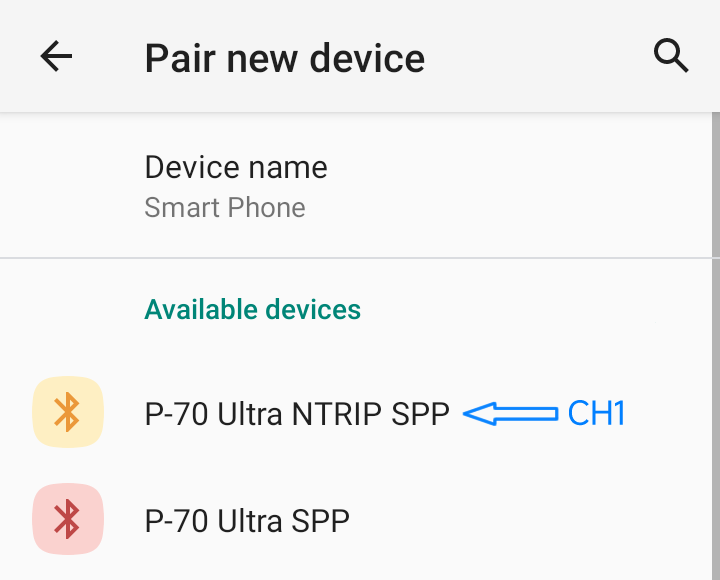
 "Preparation 1:" Pair "Bluetooth
Channel 1" of the "P-70 Ultra" with your Android device. For more
information, please
refer to > "Preparation 1:" Pair "Bluetooth
Channel 1" of the "P-70 Ultra" with your Android device. For more
information, please
refer to > |
|
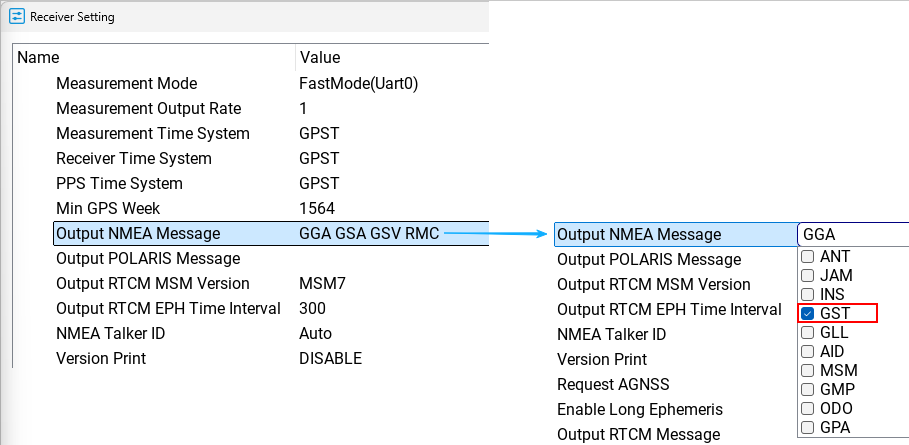
 "Preparation 2:"
SW Maps uses "GNGST" messages to display
positioning accuracy. If you would like SW Maps to show positioning accuracy
information, please enable the "GNGST"
message beforehand. For more information,
please refer to > "Preparation 2:"
SW Maps uses "GNGST" messages to display
positioning accuracy. If you would like SW Maps to show positioning accuracy
information, please enable the "GNGST"
message beforehand. For more information,
please refer to > |
|
 Launch "SW Maps". Launch "SW Maps". |
|
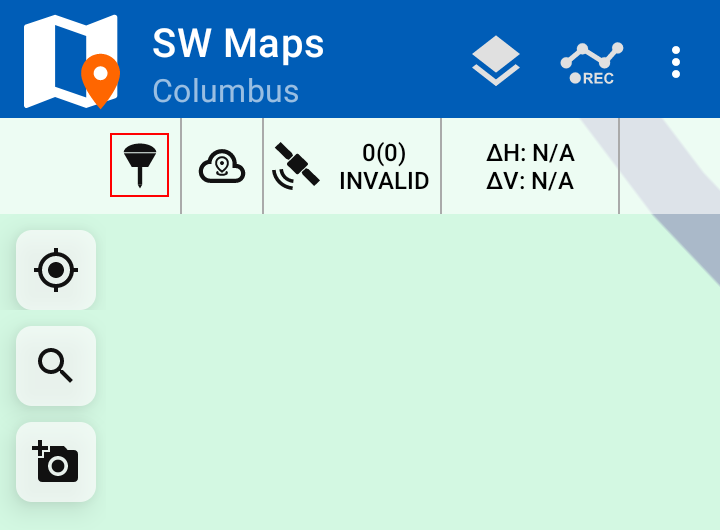
Tap the "GNSS"
icon in the upper-left corner. |
|
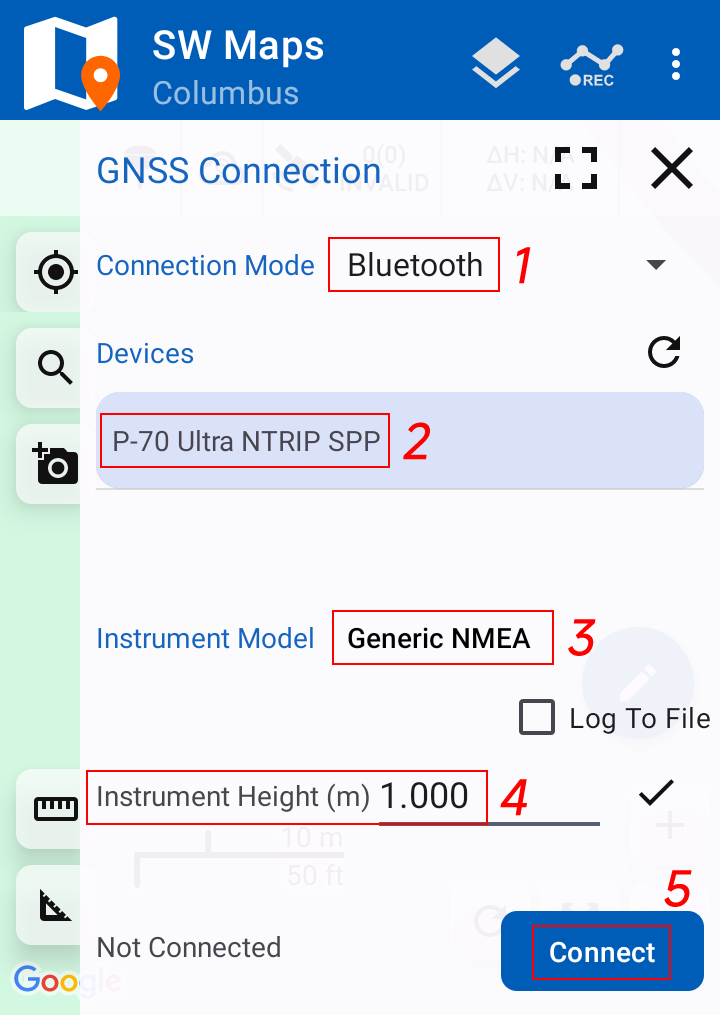
Please follow
the settings shown in the figure for "Steps 1–3". In "Step 4", enter the height
of the "P-70 Ultra antenna", and then tap "Connect". Once positioning data
appears in the left-side panel, the connection to the "P-70 Ultra" has been
successfully established. |
|
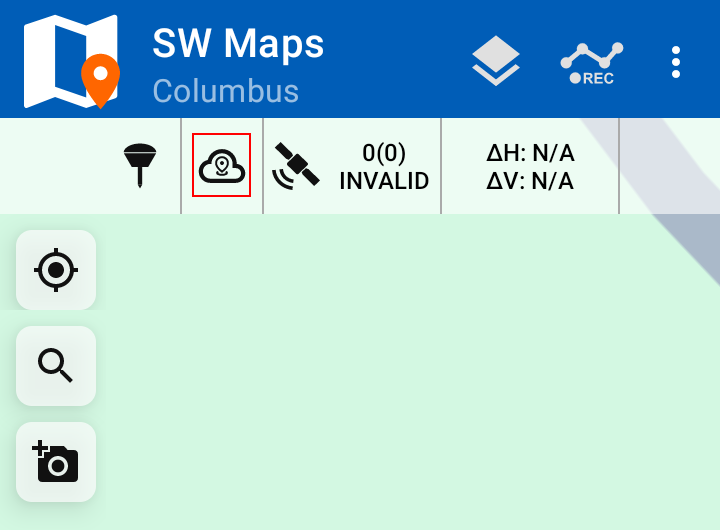
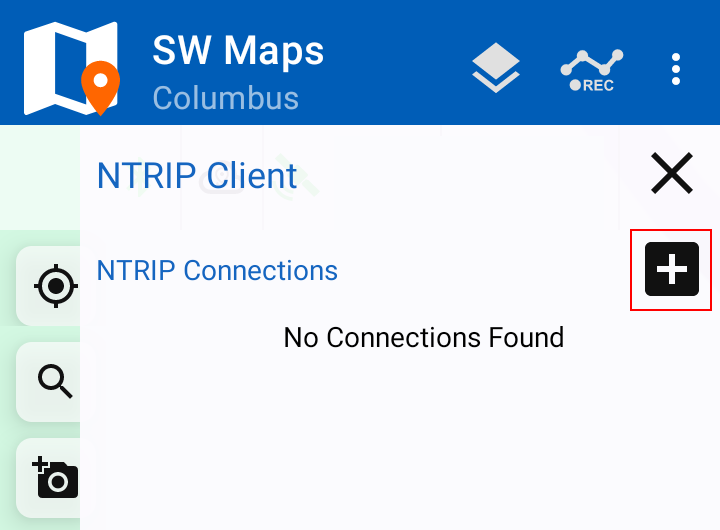
Tap the "NTRIP"
icon in the upper-left corner, and then tap the "+" button. |
|
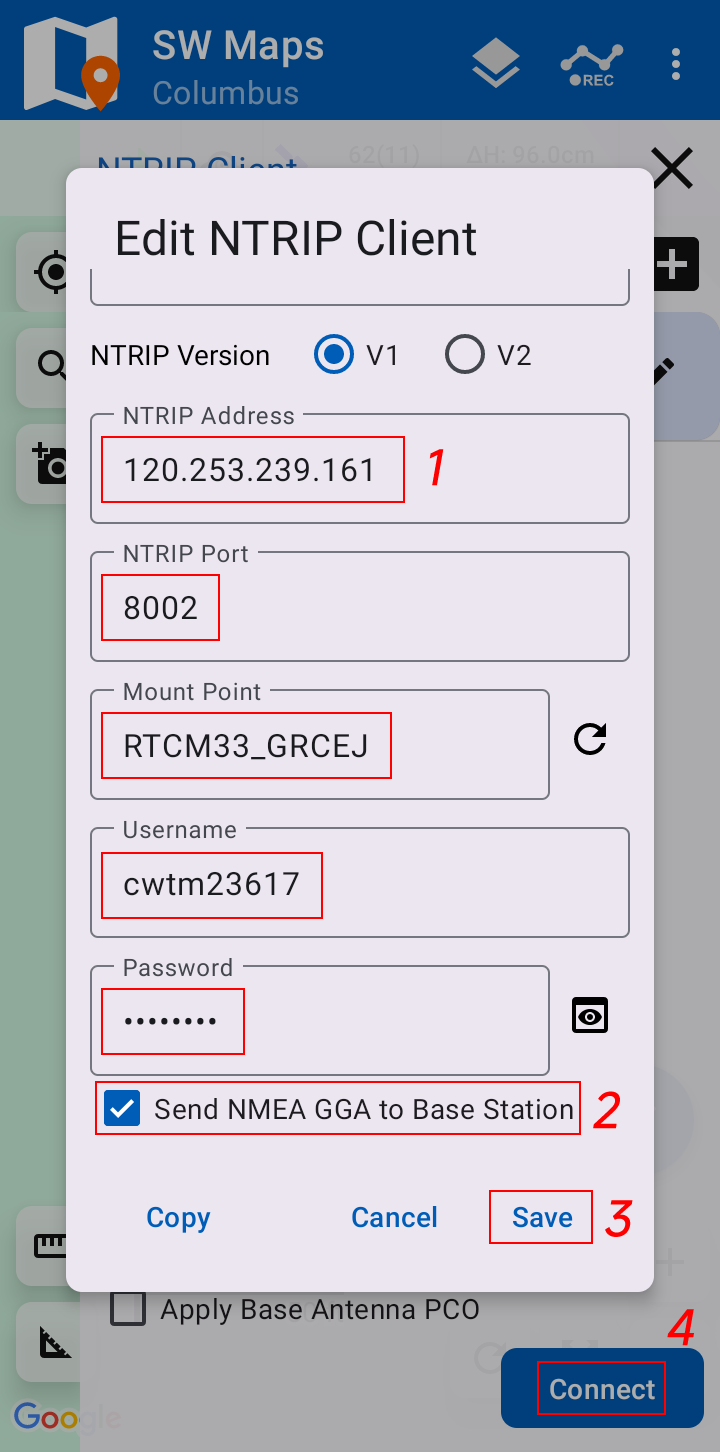
Enter the "NTRIP
Client information", check "Send NMEA GGA to Base Station", and tap "Save".
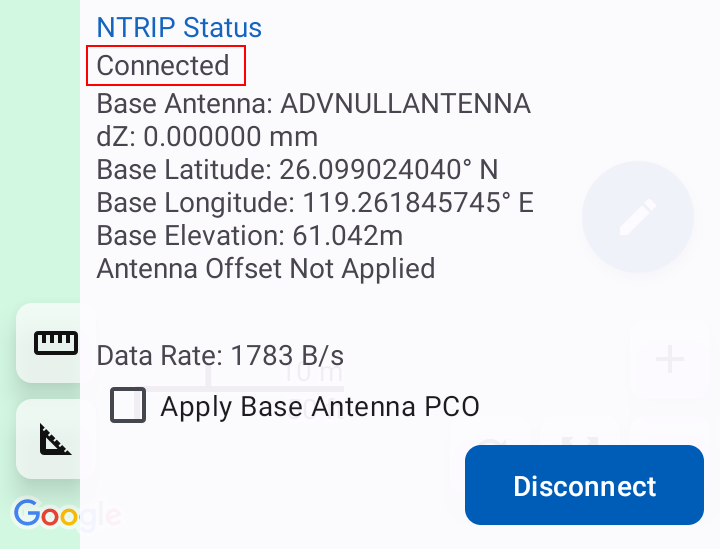
Finally, tap "Connect". When the "NTRIP Status" changes to "Connected", the
connection to the NTRIP service has been established successfully. |
|
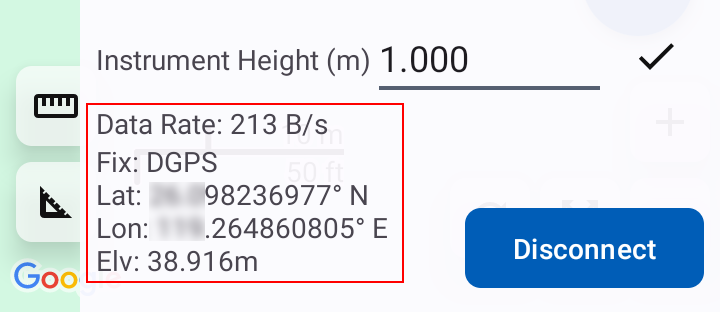
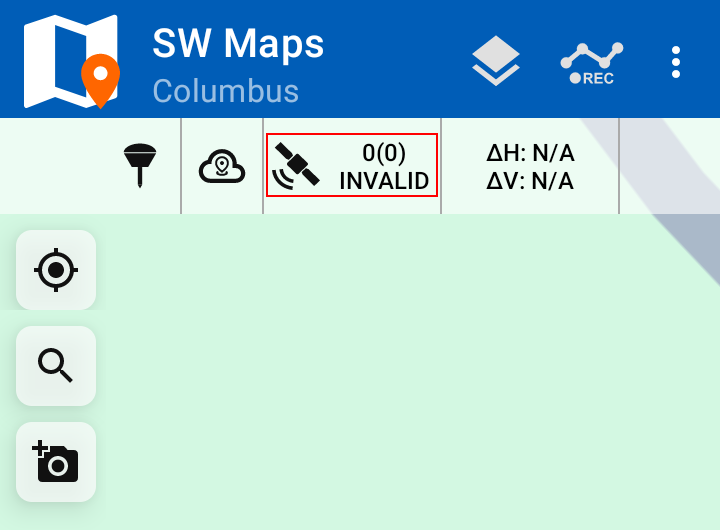
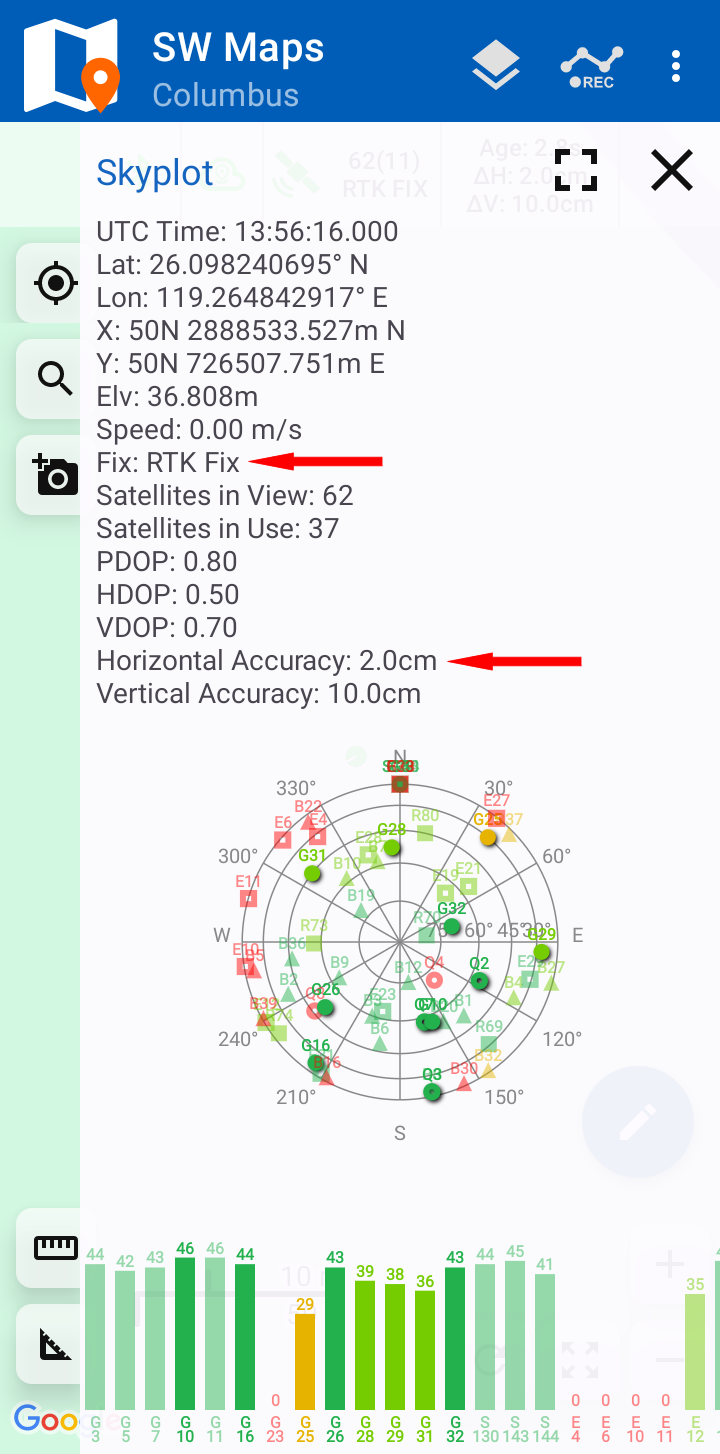
Tap the
"Satellite" icon in the upper-left corner. When the "Fix" status displays "RTK
Fix", RTK positioning has been achieved. Confirm that the "horizontal accuracy"
has reached the "centimeter level". |
|
Note: "SW Maps"
has a compatibility issue when displaying the number of satellites used by the
"P-70 Ultra". As a result, the displayed satellite count may fluctuate within a
certain range. This is normal behavior and does not affect the actual
positioning performance. |
|
|
|
|
|
|